Showing posts with label tutorials. Show all posts

Tuesday, September 27, 2011

Ultimate online security explained

Codexero Blog - Ultimate online security explained.

You are probably here because you are concerned about the security and privacy of your online presence. You maybe shocked to know that major search engines and social networks like Google,Yahoo, Bing and Facebook keeps track of what you search and which other websites you visit. In this article I am briefing about password security, email encryption and online privacy.

Sunday, November 1, 2009

Maldivian Media Copyrights Protection Attempt!?

As most Maldivians are aware of,  Maldives does not have any laws and regulations on copyright protection. This has led to many losses in the film and music industry in the Maldives. A guy buys an original DVD or CD and his friends will receive copies of it, and they distribute more copies to their friends and son on.


To battle this problem, film and music producers put malware on the DVDs and CDs that make use of the autorun feature of your Windows. So as soon as you insert the DVD or CD into your PC the malware executes itself disabling the task Manager, Folder Options, Hiding your Drives and altering many other system settings. After infection the system shutdowns itself after a certain period of time, normally after six minutes. The DVDs and CDs are only meant for players.

Though this attempt cannot prevent an average Maldivian from using the DVDs and CDs on their PCs, some common users fall victim to the malware. I believe that copying and distributing other peoples work without the owner's consent is totally unethical, but I also believe the rights of the end users. Why can't they play or watch the films on their PCs? The producers does not have the right to put malware on their production media and infect the end users.

How to get rid of the Malware.
--------------------------------------------------------------------
Click your Start Menu and Select Run.

Type shutdown -a and press OK. Repeat this if the dialog box (displaying the countdown) on your screen does not close.

Click your start menu and select Run.

Type msconfig and press OK. The System Configuration Utility should open.

Select "Startup" tab.

Look for entries with random names (normally 3 or 4 letters).

Uncheck  the suspected items (You may need some knowledge of the processes running on your PC). Then click Apply.

If you did it right then you have disabled the malware. Now you need to restore the system settings.

Download and install TweakUI from Microsoft

Download Remove Restrictions Tool: http://www.box.net/shared/mtueogguog

Run the RRT Utility and Click "Enable All" Button.

Now open the TweakUI utility.

Select MyComputer > Drives from the tree menu. Select all drive letters and click OK. Now Log Off and then Log On again. If you still can't see your drives in MyComputer then click Start Menu > Run. Type Regedit and click OK. This should open your registry editor.

Now Press Ctrl+F.

Type NoDrives and click "Find Next" Button. Wait for the search to finish.

If you see "NoDrives" Entry in the right pane of the Regedit window delete the entry.

Press Ctrl+F again. Click "Find Next" and wait for the search to finish. Delete any entries in the right pane with the Name "NoDrives".

If you followed the instructions correctly then it should fix the problem. If it doesn't then Check the CodeXero Remove Restrictions Utility.

Have a great day!

Friday, October 16, 2009

free secure personal vpn solutions

DesktopShare(VNC): Access your computer desktop remotely or share your desktop with your friend from anywhere in the world. Gbridge automatically traverses firewalls and NATting routers without the need for configuration!

IPSec Virtual Private Network FundamentalsRelated: http://sumbolo.blogspot.com/2009/10/free-ssl-virtual-private-network.html
Previously I wrote an article on using ADITA (Open VPN ALS) to setup a free Virtual Private Network. ADITA is not the only solution. Though ADITA is a very advanced software, the common users may not use all the features available. Therefore I decided to share two other free VPN solutions with you.


Features:
SecureShare: Securely share files among your own computers, so you can remotely access your files, e.g. play mp3 , with ultimate privacy. Securely share files to your designated friend, so the selected friend can instantly view the auto-generated photo thumbnails and slideshow remotely. No web upload/download needed!
AutoSync: Transfer large files and synchronizing folders to and from anywhere has never been easier. AutoSync supports auto-schedule, auto-resume, incremental transfers and no size restrictions!
EasyBackup: Setup an auto-recurring backup of your important folder to a local or remote PC is as easy as 1-2-3!
1 - VPN Using GBridge
i - Download and install Gbridge from http://www.gbridge.com/
ii- Install Gbridge on your computer. It may take several minutes to complete the installation.
iii - Initial Setup

Run the Gbridge. Gbridge will ask you to enter a user ID.
Again the fastest and easiest solution is to enter your gmail address.
Gbridge Authentication

Enter your gmail address and password.
Enter a hostname(Example: MyPC).
Click the “Log On” button.
iv - Configuration
By Default the folder “C:\Program Files\Gbridge LLC\Gbridge\SecureShare-Demo, DO NOT store any private file in it” is shared with the world.

Gbridge
right click the shared folder (see the picture above) and select “Edit SecureShare…”
Now decide which users can access your shared resources (Provided that they have Gbridge installed and running).
You can setup an optional password to access the shared resources.
To get the shared resource URL, right click on the shared resource in Gbridge and select “Copy SecureShare URL”
You can share this URl with your friends. They can access the shared resources by following the URL in their browser.
Experiment and read the FAQ from the help menu.
Enjoy!
2 - VPN Using Hamachi
i - Register a free Account at https://secure.logmein.com/US/products/hamachi2/register.aspx
ii - Account Confirmation
You will receive a confirmation mail at the email address you provided during registration.
Confirm the registration by clicking the appropriate link in the email.
iii- Setting up the Network

Log in to your account.

Follow this link : https://secure.logmein.com/hamachi/addnet1.asp

Enter a network name (Example: MyNetwork)

Enter a description for the network(Optional).

Select the network type (The simplest and easiest solution is Mesh type).
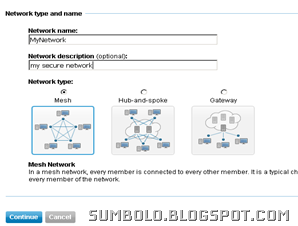

hamachi Network type selection
Click continue.

Hamachi Network Configuration
Now setup network options according to your needs (see the above screenshot).

Configure Join Request options (You can leave the default settings).

You can enter an optional password.

Click continue.

Click Finish
hamachi Registration


Note down the Network ID(see the above screenshot). 
iv - Installation


Download: https://secure.logmein.com/US/products/hamachi2/download.aspx

Install the client on your PC.

Find your network ID

Now run the Hamachi client you just installed.

Go to Network menu and select Join an Existing Network.

Enter the Network ID and password(if any).

Install the client on all the computers you want to join the Network.

And join the network by entering the Network ID and password (if any).

The Hamachi client will show all the computers that are attached to the network.

Every client computer is given a globally unique virtual IP Address.

You can use this IP address to access shared resources on that computer.
Refer to the Hamachi documentation for additional help.
v - Done!
Technorati Tags: Virtual Private Network,VPN


Reblog this post [with Zemanta]

Thursday, October 15, 2009

Tooth Paste – more uses than you think

Tooth paste is meant for cleaning teeth, but the nature of toothpaste and the chemical composition makes it a very useful product for many other purposes. I would like to share some of unusual applications of toothpaste.

1 Remove Crayon Marks
So the children have made your walls,floor or furniture dirty with crayon! Can’t afford chemicals to clean theimage place? Don’t worry, there’s a simple solution.

Squirt a small dab of non-gel toothpaste on the area where the mark is. Rub gently with a soft cloth. Now rinse with warm water. Viola! All gone.
2 Deodorize handsimage
Are you trying to get rid of that strong odor of onion and garlic off your hands?

Wash them with a blob  of toothpaste.
3 Whiten Sneakersimage
Afraid of using bleach liquid to whiten your sneakers?
Clean the rubber soles with an old tooth brush and non-gel toothpaste.
4 Buff a DVDimage
So you weren’t so caring for your DVDs. After a couple of use you got scratches on the DVD. 
 
Squeeze a little non-gel toothpaste on the DVD starting from the centre out to the edge. Rinse with water and dry with a non abrasive, lint free cloth.
5 Defog Goggles image
Apply a coat of toothpaste inside the swimming goggles, then wipe off. They will be crystal clear.

Cut your costs. Go green!


Tuesday, October 13, 2009

THE REVOLUTIONARY OS

In a time when compute industry was completely monopolized,  computer Os were expensive. A group of computer programmers came up with an idea of a free OS. The philosophy behind this idea is RICHARD STALLMAN, the founder of the GNU project. The author of “Open source” definition is BRUCE PERENSE. The Author of Linux kernel when it was first released is LINUS TORVALDS.   

image image image
Linus Toralds Richard Stallman Bruce Perense

When LINUS TORVALDS (student at University of Helsinki at the time), the author of Linux kernel released the first Linux kernel independently, there was no relation with the GNU project. GNU project was writing a free OS independently, but because of the complexity of their very advanced design it was taking a long time to finish the project.

Users who were searching for an alternative free unix, found the pieces of he GNU project which was missing just the kernel. So the end users filled the gap with the Linux kernel. And the revolutionary OS,Linux was born. After that Linus and the GNU project collaborated along with many other programmers on the net to develop the Linux Operating system that we see today.

There are many flavors of Linux, developed by different groups of programmers, all of them based on the Linux kernel.

Watch Video on the revolutionary OS (1 hour 25 Minutes): http://video.google.com/googleplayer.swf?docid=7707585592627775409&hl=en&fs=true


Saturday, October 10, 2009

Make yourself a safety purse

At a time when theft and violence are on the rise, we need to take safety precautions. An inexpensive alarm system that girls can carry in their purse may be a good idea. of course if they allow you to mod their purse! This tutorial is from the MAKE Magazine. Lets start working.

What you Need.

1 120 db Siren
2 A small switch
3 9volt battery
4 Wire
5 Heat shrink tubing
6 Some clothing material ( a piece of tough cloth is fine)
7 Your purse!


What you need

How it is done.

Watch the Video: http://www.youtube.com/v/FhxWWBymLBY&hl=en&fs=1&rel=0&color1=0x3a3a3a&color2=0x999999
OR follow the instructions below.

1 The siren has two wires. Connect the red wire to the switch.
2 Connect the other siren wire to the negative pole of battery (usually marked with a “-“ sign).
3 Connect the other pin( or wire) of the switch to the positive (+) pole of the battery.
4 If you don’t want to use heat shrink tubing you can use normal insulation tape to insulate the exposed wire.
The finished circuit
5 Use the clothing to make a small bag (cover) large enough to fit the battery. Put in the battery and sew the opening.
Make a cover for the battery
6 Cut a small hole at the bottom of the purse (So the alarm can be heard).
Cut a hole at the bottom
7 disguise the hole by patching the hole with some gauge material.
Use some Gauge to conseal the hole
8 Put the siren at the bottom of the purse, near the hole and use some adhesives to attach it.
9 Attach the switch at the top of the purse.
Switch

Done!

Finished Purse Image


Friday, October 9, 2009

ACCESS ADITA VPN FROM ANOTHER PC

Previously I have written on how to setup a free SSL Virtual Private Network here: http://sumbolo.blogspot.com/2009/10/free-ssl-virtual-private-network.html.
A lot of users ask how to access their PC from another PC. It’s really simple. Follow these steps.

1.Add the VPN Port (default is 443) to the exception list of your firewall in order to allow incoming connections to that port.

2.If you are behind a router you will also need to forward the VPN port to your PC (Where the VPN Server is running).

3.Now find your IP address as seen to the internet by visiting www.cmyip.com. To access the VPN, point the browser to http://your-ip-here. If your IP is 123.176.10.30 then point your browser to http://123.176.10.30 .


If you have a dynamic IP address things become a little complicated. Every time your dial your ISP a new IP address is assigned to your PC. Fortunately there is a free service called DynDNS.
1. To register a free account go to https://www.dyndns.com/account/entrance/.

2. You will need to confirm your email address. Login to your email account (as provided during the registration at DynDNS) and click the activation link. Now login to the DynDNS account.

3. Click My Hosts Link on your account under “my services”.
image
4. Click Add New Hostname. Now you will see a page similar to the below screenshot. Type a hostname (Example: Myhome). Select any option from the dropdown on the right (see the below screenshot). If you put your hostname as “myhome” and you select “dyndns.org” from the dropdown then your domain will be myhome.dyndns.org.
image Type your IP address in the “IP Address” Field or click “Use auto detected IP address ” under the “IP Address” field.

5. Click “Add to Cart” (Don’t worry, its free!).

6. Click Next.

7.Click “Activate Services” Button

8. Download and install DynDNS Updater from https://www.dyndns.com/support/clients/. You will need to provide your login details to the client (only once) after installing. This client program will update your account periodically with your current IP Address. So even if your IP address is dynamic your VPN can be accessed from the domain you setup.

9. Done! To access your PC (VPN) from anywhere in the world type in the domain name (Example: myhome.dyndns.org).


Saturday, October 3, 2009

Free SSL Virtual Private Network

Some guys might wonder "What in the world is VPN?". Don't wory, if you have no idea what a VPN is goto www.wikipedia.com and spend some time reading the article. Basically a VPN is used to access resources in a LAN from a Computer Outside the LAN. VPN's are also used to connect two LANs together. How about accessing your PC from office? After you Install and configure VPN on your home PC, all you need is an internet connection and a web browser to access your PC from any location.

So lets setup a FREE SSL Virtual Private Network.

What you need?
1- Open VPN ALS can be downloaded from www.sourceforge.net . But there's no official Windows installer. It'll be cumbersome to install and configure it manually. So I recommend downloading a third party Windows Installer for Open VPN ALS. Get it here.
You'll need to install the Java Runtime environment first, before installing the software.

2- Java Runtime Environment from  http://www.java.com/getjava/


Click here to watch the Video or read the tutorial below.

How it is done
The open VPN ALS can be setup on linux too, but I am going to focus this tutorial on Windows NT. Run the Open VPN ALS Windows Installer. You will be taken to a series of steps. I am sure we Maldivians are quite familiar with installing software.

1- Its, just "Next, I Agree, Next, Next" and so on. After the installer copies the necessary files to you computer a Command Line Screen will be shown (see the picture). Just wait until a new browser window is open.


2- Don't worry if any error occurs, like failure to open the browser window automatically.Just point your browser to http://localhost:28080/.
You will need configure some settings here. Select the "Create New Certificate" option as seen in the Screen  shot. Click Next.

3- Enter a password for the self signed certificate. Make sure you select a strong password. Alternatively you can use a certificate from a CA. Click Next


4- Enter details for the certificate ( see example in picture 5). Click Next
Select "Built-In". You can use active directory if you are running the Active Directory service(Windows Server). Click Next.

5- Enter a super user name, e-mail and password. Choose a strong password. This will be the admin user name and password. Click Next.

6- Configure the web server to suit your needs. You can also leave the default settings. Click Next.
If your using  a proxy server then enter the proxy server settings. Click Next

7- Click Finish. Wait for the installation to finish.

8- Press any key in the Command Line Screen. Then Click Next on the Installer. You will be prompted whether you want to Install Adito as a service. I recommend installing it as a service. Click Next. Congrats! Installation completed. If necessary restart the PC.


 Using the VPN
1- Go to Start > Program Files > Adito > Service - Restart

2- Point your browser to https://localhost/

3- The browser may warn you that the connection is untrusted, that is because you are using a self signed certificate. Ignore the warning and continue installing the certificate.

4- You will asked to enter User Name. Enter the Super User Name and click Login

5- When asked for the password enter your admin password.
And Viola! you are in. This is the admin panel. Configure different settings here like adding users, resources that can be accessed from another location, etc.

To make a folder accessible from outside
1- select Network Places ( Under Resources ) from the left pane.

2-You will see "Create Network Place" on the right. click the link.

3- Enter a name and description for the shared resource. make sure you check the option "Add to favourites" at the bottom. Click Next.

4- From the Dropdown Select Type as "Local File".

5- Enter the path for the folder or file.Click Next

6- From this screen you can configure permissions on who can access this resource.

If you are behind a router or a firewall you will need to forward the port (default is 443) to your PC.
To access your resources from anywhere in the world ( of course I am assuming that you have configured the VPN server correctly, and your PC is online) point your browser to http://Your-PC-IP-Here/
This is not an in depth tutorial, you will have to spend some time to discover and master all the features this powerful VNC server has to offer.
Good Luck!

Tuesday, August 21, 2007

Are you sure your passwords are safe?

If you are using public computers it is possible that somebody maybe spying on you. In a recent visit to the headquarters of a local news paper I found that some computers has spying software installed. Are you sure your office computer is safe?

What is a Keylogger?

Keyloggers are software or hardware tools that captures or stores whatever you type on the keyboard. It captures everything including your passwords, your chat logs and whatever you typed on the keyboard. Some modern keyloggers have the ability to capture the screen as well. There are two types of keyloggers; software and hardware.

The Solution

If you have administrator rights install an anti-keylogger software to remove all keyloggers.
Alternatively you can use this tool to temporarily disable keyloggers. I also reccommend you to try these tools which are listed in wikipedia and roboform2go which is a password management tool for websites.

Confuse keyloggers when you enter a password.

Example: your password is 'thesecretpassword' .
  • Type 'the' in the password box
  • Click on the browser address bar or open the notepad and type something else
  • Again put the focus to the password input box and type 'secret'
  • Click on the browser address bar or open the notepad and type something else
  • Again put the focus to the password input box and type 'pass'
  • Click on the browser address bar or open the notepad and type something else
  • Again put the focus to the password input box and type 'word'
The more parts you breakdown the password the better. This method is not completely safe. But it'll make it more difficult to find the password.

Saturday, July 21, 2007

How to Secure your pen drive.

This tutorial will show you how to create an encrypted volume on your pen drive using TrueCrypt. TrueCrypt is a software system for establishing and maintaining an on-the-fly-encrypted volume (data storage device). On-the-fly encryption means that data are automatically encrypted or decrypted right before they are loaded or saved, without any user intervention. No data stored on an encrypted volume can be read (decrypted) without using the correct password/keyfile(s) or correct encryption keys. Entire file system is encrypted (e.g.., file names, folder names, contents of every file, free space, meta data, etc).


You will need:
1) a USB drive
2) True Crypt


1. Preperation

Extract TrueCrypt zip files and copy the following files to the root of your pen drive. (There is no need to install TrueCrypt).
  • TrueCrypt Format.exe
  • TrueCrypt.exe
  • truecrypt.sys

2. Here we go!

Run TrueCrypt Format.exe


There are two of volumes, we will use the standard type. Click Next.


Type any name (with full path) to your pen drive, (example:- f:\secret). The name must be unique. Click Next.

3. Select the encryption type.
In this case it is AES-Twofish-Serpent. Click Next.

4. Size of the encrypted volume. Select the volume size to suit your needs. In this case we choose 512 mb. Click Next.

5. Now choose your secret password. And never forget it. Click Next.

6. Click the format button. Now TrueCrypt will format the volume. Don't worry! Your data will be safe.


Almost finished, but we need to know how to use the secret volume, right?

7. Download this file and copy it into the root of your pen drive.
Remove your pen drive and insert it again. Open my computer. Right click on the pen drive icon. You will see something like this.

To use the encrypted secret drive you will have to mount the secret drive. Click on the 'Mount secret drive' menu item. You will be prompted to enter your secret password. When you enter the secret password the secret drive s: will be mounted and should be visible in 'My computer' window. You can use this drive like an ordinary drive. Put all your secret files in this drive. When you are finished right click on the drive icon and Click on the 'Unmount secret drive' menu item.
After all it wasn't that difficult dho! Enjoy!

Tuesday, July 3, 2007

The Students Web.

Searching for information may not be as easy as it seems. Some people stick to wikipedia while others google for information. But isn't it better if you know where to find them? I have a list of some good websites from a PC magazine I bought a couple of months ago. I hope you'll find this useful.

Physics

www.glenbrook.k12.il.us/gbssci/phys/phys.html
http://ocw.mit.edu/ocwweb/physics/index.html
www.lightandmatter.com/index.html
Flash Animations for Physics http://faraday.physics.utoronto.ca/GeneralInterest/Harrison/Flash/
physicsforum www.physicsforums.com

Chemistry

Chemistry - The wikipedia entry http://en.wikipedia.org/wiki/Chemistry
An introduction to Chemistry http://www.preparatorychemistry.com/
Chem1 virtual Textbook www.chem1.com/acad/webtext/virtualtextbook.html
Chem web 2000 library.thinkquest.org/19957
Chem Guide www.chemguide.co.uk
Chemistry Animations www.klte.hu/~lenteg/animate.html
The Chemistry Thesaurus www.chemthes.com

Biology

An online Biology Book www.estrellamountain.edu/faculty/farabee/biobk/biobooktoc.html
Lubey's Bio Help http://users.adelphia.net/~lubehawk/BioHELP!/biotopcs.html
The MIT Biology Textbook web.mit.edu/esgbio/www/
The complete introduction to General Biology www.waybuilder.net/free-ed/Science/Biology/GenBio/Genbio02_TBK.asp
Biology online www.biology-online.org
Cells Alive! www.cellsalive.com
The virtual Frog Dissection Kit http://froggy.lbl.gov/virtual

History

Classic encyclopedia www.1911encyclopedia.org
Spark notes www.spaknotes.com/history
The Encyclopedia of World History www.bartleby.com/65
The History Guide www.historyguide.org
World Civilizations www.wsu.edu/~dee/

Geography and Civics


Geohive www.geohive.com

Altapedia Online www.atlapedia.com

The World Fact Book www.cia.gov/cia/publications/factbook/index.html
Country Studies http://lcweb2.loc.gov/frd/cs/cshome.html
One World - Nations online www.nationsonline.org/oneworld


http://math.uakron.edu/%7Edpstory/mpt_home.html
Webmath.org www.webmath.org
The Math Forum @ Drexel www.mathforum.org/dr.math/
Dave's short trig Course (Java Platform Required) www.clarku.edu/~djoyce/trig/
Eq World http://eqworld.ipmnet.ru/en/solutions/ode.htm
Algorithms and Complexity www.cis.upenn.edu/%7Ewilf/AlgComp3.html
Wolfram Mathworld http://mathworld.wolfram.com/
Engineering

Wikipedia Entry http://en.wikipedia.org/wiki/Enginering
Massachusetts Institute of Technology OpenCourseWare http://ocw.mit.edu
Engineering Formulas www.efunda.com
Applied Machanics http://claymore.engineer.gvsu.edu/~jackh/eod/egr209.html
Design Handbook http://pergatory.mit.edu/2.007/Resources/index.html
Basics of Computer Programming
Online C and C++ Courses http://www.macs.hw.ac.uk/~rjp/Coursewww/
Introduction to programming using java http://math.hws.edu/javanotes

Mechanical Engineering

Free Study www.freestudy.co.uk/home.htm
Strength of Materials http://physics.uwstout.edu/statStr/index.htm
Fluid Mechanics www.efm.leeds.ac.uk/CIVE/CIVE1400/course.html
Fluid Mechanics Tutorial www.fluidmech.net

Electronics Engineering

circuit analysis www.et.uncc.edu/elet_info/CircuitTutor/CircuitTutor.html
Semi Conductors http://ece-www.colorado.edu/~bart/book/title.htm
Theory of Computation www.cs.bu.edu/~lnd/toc

Computer Organization/Architecture

http://williamstallings.com/COA5e.html


Free Online Training Courses

www.e-learningcenter.com/free.htm
HP online classes http://h30240.www3.hp.com/index.jsp/
Free computer Science Video Lecture Courses http://tinyurl.com/jq5n8
Free Computer books, Tutorials and Lecture notes http://freecomputerbooks.com
cryptography http://tinyurl.com/28fsps
Stanford Computer Science Education Library http://cslibrary.stanford.edu
Free Tech Books http://freetechbooks.com

Electrical Engineering

Electronic Components http://ourworld.cs.com/gknott5413
Operational Amplifiers http://tinyurl.com/yovceo

Computer Enginering

Operating Systems http://en.wikipedia.org/wiki/Operating_system
Micro and Microprocessors http://tinyurl.com/37xvyx
Object Oriented Programming http://www.aonaware.com/OOP1.htm

Enjoy!