Showing posts with label internet. Show all posts

Tuesday, September 27, 2011

Ultimate online security explained

Codexero Blog - Ultimate online security explained.

You are probably here because you are concerned about the security and privacy of your online presence. You maybe shocked to know that major search engines and social networks like Google,Yahoo, Bing and Facebook keeps track of what you search and which other websites you visit. In this article I am briefing about password security, email encryption and online privacy.

Tuesday, September 20, 2011

Dhivehi Websites - all that I found.

These are some of the websites I came across. All these websites are in thaana font. You are most welcome to suggest more dhivehi websites or blogs to add to the list.

Monday, July 25, 2011

Keep track of your online life.

With dozens of social networking services, micro blogging and location aware services etc, it can get a lot confusing. Fortunately a group of tech enthusiasts had come up with an idea, on which they build the "Memolane". It is a service which integrates your online networks such as Facebook, twitter, Google services, etc. Later on you can view all your online activities in a neat time line.

However I was concerned about privacy here. Their terms and conditions say that they will fully co-operate with any authority and hand over the personal data if deemed necessary.

To add up, its a very nice service. Checkout the CEO/ Co Founder's Memolane http://bit.ly/pc82T2
And the following video from the site may convice you to sign up for the service which is  free.

Memolane - See, Search & Share from Memolane on Vimeo.

Tuesday, July 12, 2011

How to get your Google+ (Google lus) invite!

Update: Google+ invites working normally.

Google+ is the Google version of Facebook with better privacy and features. The top story on twitter and web is Google+ and the top search terms include "Google+ invitations". Google+ is still in the Beta, so only few people who are lucky, are allowed to peek a look at the service. My sister (unica princesa) sent me an Google+ invite. According to Lifehacker traditional invitaitons doesn't work anymore.
 So how did  unica princesa succeeded in  inviting me. Ok, here is what she did.


  1. First,create a new Circle  then  add a new friend to that circle by email —the person you want to invite to Google+.
  2. Then post to your stream and mention your friend in that post.
  3. Ask your friend to check their email.
This method may or may not work, but there isn't any harm in doing so.. Go ahead, tell a friend already on Google+ how t give you an invite.

One of the coolest features of Google+ is the voice and video chat feature. No wonder why FB was hasty to introduce this feature. In my short experience I feel that Google+ is way better than Facebook.

Are you interested? I can try to invite a few guys, so that you can too have a peek at the Google+ before everyone does.

Sunday, July 10, 2011

Automate your digital life, be the smarter guy who is always a step ahead..

Back in the stone age communication was so difficult that it may take more than a year to send a message from Asia to America. Only the people of that time can truly value the ease of communication today. However it came with a side effect. Our real life interaction is being replaced by virtual interaction through social media sites such as Facebook, Google+, MySpace etc.

COmmunication has developed to such an extent that our digital life is becoming a mere mess. Suppose you write a post on your blog,and you tweeted the link. And you also realized that you should share the link with your friends on Facebook,MySpace etc. However doing all those tasks manually and repetitively everyday can become a boring and difficult task. Thats where IfThisThenThat (ifttt) comes in.

You can create Triggers which will automatically tweet your link and share with your Facebook friends. You can even create a trigger which will SMS you if you recieve a new email. There are many possibilities. This is truly an amazing service.

ifttt is still in Beta and you will need an invitation code to join.
Use the invitation code CNETHOWTOALLSTARS to sign up for the service.

Enjoy!

Saturday, July 9, 2011

Boost Router Wifi Signal With Poweful Custom Firmware.

D-Link DIR-655 Extreme N Gigabit Wireless RouterI live in a fairly large house. Recently I setup wireless internet at my home. It is cool because you don't have to play around with the messy cables. However when I am in my room the signal strength decreases gradually. Of course the obvious solution was to buy a much powerful (and expensive!) wireless router. Luckily a friend suggested me to flash my router with a more powerful and customiazble firmware.He suggsted DD-WRT. I did some research on this firmware before I rushed into playing with my router. As it turns out DR-WRT is the most reliable and powerful router firware available - for free!


One of the great features of DD-WRT is the ability to update DNS-O-Matic service, which updates dyndns,
opendns and more servers with my current IP. If you are using your PC as a webserver or if you are using openDNS service you will probably need this feature, since most of the ISPS give dynamic IPS.  So every time you connect to the internet you are given a new IP address. This is just one of the many great features of DD-WRT.
There are more features like Wifi Hotspot, VPN, SSH access, Telnet access etc. And anyway after being convinced of the reliability of DD-WRT firmware I flashed my router, and behold, it was up and running in less than three minutes.

I looked around and saw Tx Power (transmit signal strength)  adjustments. I put in the value seventy two in the input box and applied the settings. It significantly boosted the WiFi signal strength. Afterall my day was saved, and I saved huge bucks! Its time for a casual coffee with my friend :)

DD-WRT supports almost all routers out there. So turning a cheap router into an expensive and feature rich router for free is real.

Friday, July 8, 2011

Premium access to Megaupload, Rapidshare for free leagally.

Talking about file sharing, it has always been cumbersome to deal with large files. Suppose you want to share a very large file such as a video you first think of raidshare, megaupload, hotfile, fileserve etc. After uploading you give your friend on the other side of the world the link to the file. It's fine if he/she happens to have a premium account which costs a lot of money, but what if she doesn't have a premium account. Of course Rapidshare, Megaupload and other services allow you to download the file, but without support for download resuming, and at a much slower speed.


Then the guy would google using keywords like "free premium megaupload accounts", "hacking rapidshare" etc. only to discover phishing sites.  I hope this post shows up on his / her google results.

Watch the video to learn how to access the mega file sharing services for free legally!

Monday, July 4, 2011

Make the wild internet safe for children.

Internet is a wild place indeed. It's wise to close all the paths to the wrong dens and caves, for the protection of our children. Then again some people may call this censorship, while the reality is quite the opposite. For those people arguing about censorship I like to say that there are ethical standards in every culture, tribe and community. For example would you call it censorship because we are wearing clothes?
DNS for Dummies
Setting Up Filtering.
There is absolutely no need to buy and install parental control software, unless you specifically need to record and monitor what your kids or employees are up to. The solution to closing all the caves and dens you need to sign u for a FREE account at openDNS. They have a very user friendly documentation to setup their service.

For geeks it would suffice to say that you only need to configure your router / PC to use the following DNS servers.

Primary:               208.67.222.222
Alternate DNS:    208.67.220.220
LookSmart Net Nanny 5.0 Parental Control Software
You may also neet to filter all DNS traffic by using a firewall rule. For Dynamic IP addresses a light  weight tool is provided by openDNS to update your openDNS account with your currrent IP address which is needed by the openDNS server in order to apply the filters you specified in your account. By using openDNS you can filter access to all illegal websites.

 I did write about web filtering a while ago, but I thought I should refresh the article.

Go ahead and give it a try.

Tuesday, January 5, 2010

The Codexero BOT - An experimental IM bot

UPDATE: THE BOT SEEMS TO BE OFFLINE. THE BOT HOSTING SERVICE IS EXPERIENCING PROBLEMS.
The codexero BOT is the result of my experimental approach to getting useful information within the IM client itself, in a hassle free manner. The error rate is at maximum since the back end for the BOT is hosted by a free web server. During the tests the BOT performed quite well, although some down times were experienced.

Currently the Codexero BOT can get the latest flight information, display word definitions and display information on places, people and things.
codexero@msn.com

Some useful commands:

info - Display information on a query, example: info Maldives
dict - Display word definitions, example: dict hello
flight - Display flight information, example: flight sq451.

I would appreciate any feedback provided.

Saturday, December 5, 2009

Google Wave Invitation Giveaway!

If you weren't lucky enough to get a Google Wave invitation don't despair. Google Wave will be available for everyone in the near future, if not in a few weeks. Google Wave is an innovative idea in collaboration, chat and email. Watch the following video to learn more about Wave.


If you can't wait a bit longer until Google Wave is finally open to the public,I am giving away 3 invites.Soon I may be able to give away more invites. To get your invitation follow the guidelines below.

1 - Leave a comment for this post. Please specify your name and country. (Anonymous comments will not be eligible for the giveaway).
2 - Winners will be drawn randomly.
3 - Offer closing date will be notified soon(in this post).
4 - You must leave a confirmation comment upon receiving the invitation.

Good Luck.

Thursday, October 29, 2009

Google Wave Alternatives

So you have signed up to supposedly Google Wave invitation sites? Have you? Unfortunately most of the sites are spam sites, therefore you never receive an invitation from them.

Google Wave has been around for some time, but within a limited and closed group of people. Many interested users are desperately looking around the web to get an invitation. Google Wave is supposedly an innovative solution for social networking. Users actually interact with each other in a live virtual environment. They see each individual letter of a message as it is being typed (not before it is typed ;-) ). Google Wave will likely revolutionize Social networking. Are you abandoning Facebook or Myspace?

  screenshot
If you are not among the lucky guys who received Google Wave invitation and if you can't wait to take a glimpse of it then you are at the right place. However the solution is not as good as Google Wave itself, but at least you can try some of the features of Google Wave. 


The solution is Pygowave, which is  web based and open source, from http://pygowave.net

Alternative desktop Google Wave Clients.


Waver is based on the  iphone version of Google Wave.
To try Waver for yourself Download and install Adobe Air from http://get.adobe.com/air/?promoid=BUIGQ (15 Mb).


Note: To use this application you need a Google wave account.


Enjoy waving!

Wednesday, October 28, 2009

Dare to forget your passwords except one?

Are you having trouble remembering your passwords for numerous web services you use? Are you afraid to login to your accounts from public computers, or are you just lazy and don't care to remember all the passwords? Remember, whatever solution you use you will need to remember at least one good password. This password will allow you access to all other passwords.


There are many password applications available for free, but who wouldn't love to login to a website and login to all his other web services from that website.

Some of the most popular windows password management program is Keypass. If you are interested get it here: http://keepass.info/

Passpack is a free online password management service which allows you to login to other web services without ever entering the password for that website. You only need a one time configuration by entering the username and password for the particular website.

Clipperz is another online password management service which is similar to passpack (which is also a great service). Just enter the password and username for your online accounts and configure them using a bookmarklet available on their site.

Find out how to setup and configure your accounts by viewing the screen cast.


Enjoy!

Friday, October 16, 2009

free secure personal vpn solutions

DesktopShare(VNC): Access your computer desktop remotely or share your desktop with your friend from anywhere in the world. Gbridge automatically traverses firewalls and NATting routers without the need for configuration!

IPSec Virtual Private Network FundamentalsRelated: http://sumbolo.blogspot.com/2009/10/free-ssl-virtual-private-network.html
Previously I wrote an article on using ADITA (Open VPN ALS) to setup a free Virtual Private Network. ADITA is not the only solution. Though ADITA is a very advanced software, the common users may not use all the features available. Therefore I decided to share two other free VPN solutions with you.


Features:
SecureShare: Securely share files among your own computers, so you can remotely access your files, e.g. play mp3 , with ultimate privacy. Securely share files to your designated friend, so the selected friend can instantly view the auto-generated photo thumbnails and slideshow remotely. No web upload/download needed!
AutoSync: Transfer large files and synchronizing folders to and from anywhere has never been easier. AutoSync supports auto-schedule, auto-resume, incremental transfers and no size restrictions!
EasyBackup: Setup an auto-recurring backup of your important folder to a local or remote PC is as easy as 1-2-3!
1 - VPN Using GBridge
i - Download and install Gbridge from http://www.gbridge.com/
ii- Install Gbridge on your computer. It may take several minutes to complete the installation.
iii - Initial Setup

Run the Gbridge. Gbridge will ask you to enter a user ID.
Again the fastest and easiest solution is to enter your gmail address.
Gbridge Authentication

Enter your gmail address and password.
Enter a hostname(Example: MyPC).
Click the “Log On” button.
iv - Configuration
By Default the folder “C:\Program Files\Gbridge LLC\Gbridge\SecureShare-Demo, DO NOT store any private file in it” is shared with the world.

Gbridge
right click the shared folder (see the picture above) and select “Edit SecureShare…”
Now decide which users can access your shared resources (Provided that they have Gbridge installed and running).
You can setup an optional password to access the shared resources.
To get the shared resource URL, right click on the shared resource in Gbridge and select “Copy SecureShare URL”
You can share this URl with your friends. They can access the shared resources by following the URL in their browser.
Experiment and read the FAQ from the help menu.
Enjoy!
2 - VPN Using Hamachi
i - Register a free Account at https://secure.logmein.com/US/products/hamachi2/register.aspx
ii - Account Confirmation
You will receive a confirmation mail at the email address you provided during registration.
Confirm the registration by clicking the appropriate link in the email.
iii- Setting up the Network

Log in to your account.

Follow this link : https://secure.logmein.com/hamachi/addnet1.asp

Enter a network name (Example: MyNetwork)

Enter a description for the network(Optional).

Select the network type (The simplest and easiest solution is Mesh type).
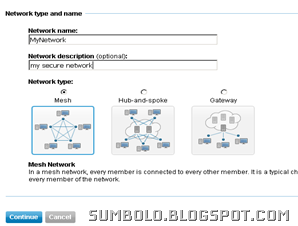

hamachi Network type selection
Click continue.

Hamachi Network Configuration
Now setup network options according to your needs (see the above screenshot).

Configure Join Request options (You can leave the default settings).

You can enter an optional password.

Click continue.

Click Finish
hamachi Registration


Note down the Network ID(see the above screenshot). 
iv - Installation


Download: https://secure.logmein.com/US/products/hamachi2/download.aspx

Install the client on your PC.

Find your network ID

Now run the Hamachi client you just installed.

Go to Network menu and select Join an Existing Network.

Enter the Network ID and password(if any).

Install the client on all the computers you want to join the Network.

And join the network by entering the Network ID and password (if any).

The Hamachi client will show all the computers that are attached to the network.

Every client computer is given a globally unique virtual IP Address.

You can use this IP address to access shared resources on that computer.
Refer to the Hamachi documentation for additional help.
v - Done!
Technorati Tags: Virtual Private Network,VPN


Reblog this post [with Zemanta]

Friday, October 9, 2009

ACCESS ADITA VPN FROM ANOTHER PC

Previously I have written on how to setup a free SSL Virtual Private Network here: http://sumbolo.blogspot.com/2009/10/free-ssl-virtual-private-network.html.
A lot of users ask how to access their PC from another PC. It’s really simple. Follow these steps.

1.Add the VPN Port (default is 443) to the exception list of your firewall in order to allow incoming connections to that port.

2.If you are behind a router you will also need to forward the VPN port to your PC (Where the VPN Server is running).

3.Now find your IP address as seen to the internet by visiting www.cmyip.com. To access the VPN, point the browser to http://your-ip-here. If your IP is 123.176.10.30 then point your browser to http://123.176.10.30 .


If you have a dynamic IP address things become a little complicated. Every time your dial your ISP a new IP address is assigned to your PC. Fortunately there is a free service called DynDNS.
1. To register a free account go to https://www.dyndns.com/account/entrance/.

2. You will need to confirm your email address. Login to your email account (as provided during the registration at DynDNS) and click the activation link. Now login to the DynDNS account.

3. Click My Hosts Link on your account under “my services”.
image
4. Click Add New Hostname. Now you will see a page similar to the below screenshot. Type a hostname (Example: Myhome). Select any option from the dropdown on the right (see the below screenshot). If you put your hostname as “myhome” and you select “dyndns.org” from the dropdown then your domain will be myhome.dyndns.org.
image Type your IP address in the “IP Address” Field or click “Use auto detected IP address ” under the “IP Address” field.

5. Click “Add to Cart” (Don’t worry, its free!).

6. Click Next.

7.Click “Activate Services” Button

8. Download and install DynDNS Updater from https://www.dyndns.com/support/clients/. You will need to provide your login details to the client (only once) after installing. This client program will update your account periodically with your current IP Address. So even if your IP address is dynamic your VPN can be accessed from the domain you setup.

9. Done! To access your PC (VPN) from anywhere in the world type in the domain name (Example: myhome.dyndns.org).


Thursday, October 8, 2009

Find Similar Images Fast

Google is the best search out there, right? Google makes our life easier than ever. If you ask a student, professional or anyone else how to find something on the web there first reply would would be “Google it”. If you can’t find something on Google than find images fast screenshotprobably its not worth finding it. Google has many features that common users aren’t aware of. Today I introduce you Google's “Similar Image Search”. It’s still in lab stage (Alpha stage or development stage). Nevertheless it works quite well. Are you  ready? Go to http://similar-images.googlelabs.com. What do you want to find? For example type “Maldives” in the search box and press enter. Now you’ll see a link named “Similar images” under each image. Click it and you are taken to a page which displays images that are similar to that image. Isn't it useful?

Enjoy!


Saturday, October 3, 2009

Free SSL Virtual Private Network

Some guys might wonder "What in the world is VPN?". Don't wory, if you have no idea what a VPN is goto www.wikipedia.com and spend some time reading the article. Basically a VPN is used to access resources in a LAN from a Computer Outside the LAN. VPN's are also used to connect two LANs together. How about accessing your PC from office? After you Install and configure VPN on your home PC, all you need is an internet connection and a web browser to access your PC from any location.

So lets setup a FREE SSL Virtual Private Network.

What you need?
1- Open VPN ALS can be downloaded from www.sourceforge.net . But there's no official Windows installer. It'll be cumbersome to install and configure it manually. So I recommend downloading a third party Windows Installer for Open VPN ALS. Get it here.
You'll need to install the Java Runtime environment first, before installing the software.

2- Java Runtime Environment from  http://www.java.com/getjava/


Click here to watch the Video or read the tutorial below.

How it is done
The open VPN ALS can be setup on linux too, but I am going to focus this tutorial on Windows NT. Run the Open VPN ALS Windows Installer. You will be taken to a series of steps. I am sure we Maldivians are quite familiar with installing software.

1- Its, just "Next, I Agree, Next, Next" and so on. After the installer copies the necessary files to you computer a Command Line Screen will be shown (see the picture). Just wait until a new browser window is open.


2- Don't worry if any error occurs, like failure to open the browser window automatically.Just point your browser to http://localhost:28080/.
You will need configure some settings here. Select the "Create New Certificate" option as seen in the Screen  shot. Click Next.

3- Enter a password for the self signed certificate. Make sure you select a strong password. Alternatively you can use a certificate from a CA. Click Next


4- Enter details for the certificate ( see example in picture 5). Click Next
Select "Built-In". You can use active directory if you are running the Active Directory service(Windows Server). Click Next.

5- Enter a super user name, e-mail and password. Choose a strong password. This will be the admin user name and password. Click Next.

6- Configure the web server to suit your needs. You can also leave the default settings. Click Next.
If your using  a proxy server then enter the proxy server settings. Click Next

7- Click Finish. Wait for the installation to finish.

8- Press any key in the Command Line Screen. Then Click Next on the Installer. You will be prompted whether you want to Install Adito as a service. I recommend installing it as a service. Click Next. Congrats! Installation completed. If necessary restart the PC.


 Using the VPN
1- Go to Start > Program Files > Adito > Service - Restart

2- Point your browser to https://localhost/

3- The browser may warn you that the connection is untrusted, that is because you are using a self signed certificate. Ignore the warning and continue installing the certificate.

4- You will asked to enter User Name. Enter the Super User Name and click Login

5- When asked for the password enter your admin password.
And Viola! you are in. This is the admin panel. Configure different settings here like adding users, resources that can be accessed from another location, etc.

To make a folder accessible from outside
1- select Network Places ( Under Resources ) from the left pane.

2-You will see "Create Network Place" on the right. click the link.

3- Enter a name and description for the shared resource. make sure you check the option "Add to favourites" at the bottom. Click Next.

4- From the Dropdown Select Type as "Local File".

5- Enter the path for the folder or file.Click Next

6- From this screen you can configure permissions on who can access this resource.

If you are behind a router or a firewall you will need to forward the port (default is 443) to your PC.
To access your resources from anywhere in the world ( of course I am assuming that you have configured the VPN server correctly, and your PC is online) point your browser to http://Your-PC-IP-Here/
This is not an in depth tutorial, you will have to spend some time to discover and master all the features this powerful VNC server has to offer.
Good Luck!

Thursday, October 1, 2009

Identify Any image Fast

Its a wonderful idea and a masterpiece of technology. Its human powered image identification. You upload an image and it takes few hours to know what the picture is. This may become very handy for us Maldivians. In case we don't know the English name of some fruit, a fish, a tree or even a bird, just go to http://idthis.org/ and upload the image. Wait for an hour or two and checkout the replies from various people from all over the world.

Saturday, September 26, 2009

DNR Website Vulnerable!

One of many government websites that are vulnerable to hacking is http://www.dnr.gov.mv/ which is the official website for Department of National Registration. I found out that this site can be defaced. No! I have no intentions in defacing the website. My sole intention is to make sure our government websites are secure. You don't believe me? Ok, I will reveal a less harmful vulnerability.To see for yourself checkout this link. Its an XSS vulnerability. Someone can use this website to fool users and do malicious activity! I urge the responsible authorities to fix the vulnerabilities as soon as possible.

Let me tell you one more website which is highly vulnerable and easy to deface. Its a social website running on a free CMS called joomla. This site is prone to SQL injection and XSS attacks. Test a harmless XSS attack by replacing the cookie variable with 1>"><script%20%0a%0d>alert('XSS Vulnerable')%3B</script>. The website url is http://dhifuraavaru.com/. Note: some modern browsers detect XSS attacks and remove the suspicious scripts from the rendered page.

Thursday, September 24, 2009

Hacked!

While doing some research I visited http://www.maldiveshighcom.co.in/ which is the official website for Maldives High Commission in India. And guess what happend? First my browser warned me that the website has harmful elements from rapidsystemsend.ru.Then there comes a popup alert from Kaspersky Antivirus.
Well, I ignored the warning and proceeded anyway. The page looks innocent enough. It says:
High Commission of Maldives website moved to http://maldiveshighcom.in
Dhiraagu still has this link on its website: http://www.dhiraagu.com.mv/about/links.php
I wonder how many people will fall victim to this danger.

Recently Dhiraagu also faced DDOS attacks. And even now http://dhiraagu.com.mv has a high vulnerability. Hint: Dhiraagu is running Apache server 1.3.x. But I don't think this particular vulnerability can be used to deface the website.

Thursday, April 12, 2007

Re Mix the Web!

Did you ever dream of a place where you could do everything? If your answer is yes then I bet you would love netvibes. :) Netvibes is a web 2.0 site which makes life a lot easier. You can check if you have new mail in your inbox without actually opening the email providers web page. You can have your bookmarks, todo list, calender and also latest headlines from your favourite news sites. These are just a few modules which netvibes has to offer. If you still want more, go ahead and design your own modules! Happy netvibing ;)